

Import Audience
Build your audience fast by importing existing contacts from CSV files. Swiftsell’s smart import system automatically maps your data and validates information for clean contact management.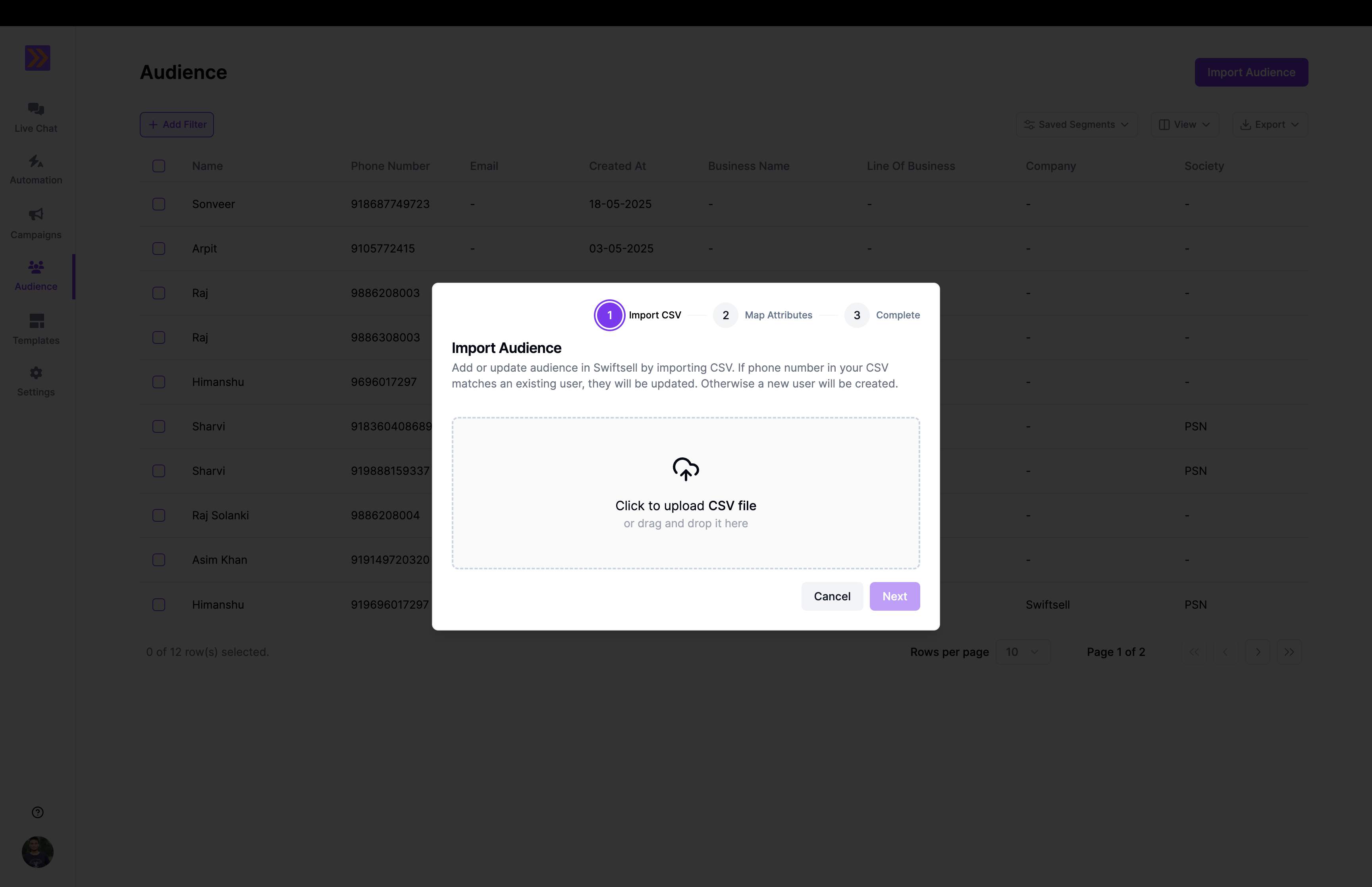
Quick Import Process
1. Upload Your CSV File
Drop your CSV file or click to browse. Swiftsell accepts standard CSV formats with headers in the first row. Requirements:- Phone numbers in international format (+1234567890)
- First row must contain column headers
- UTF-8 encoding recommended
2. Map Your Data
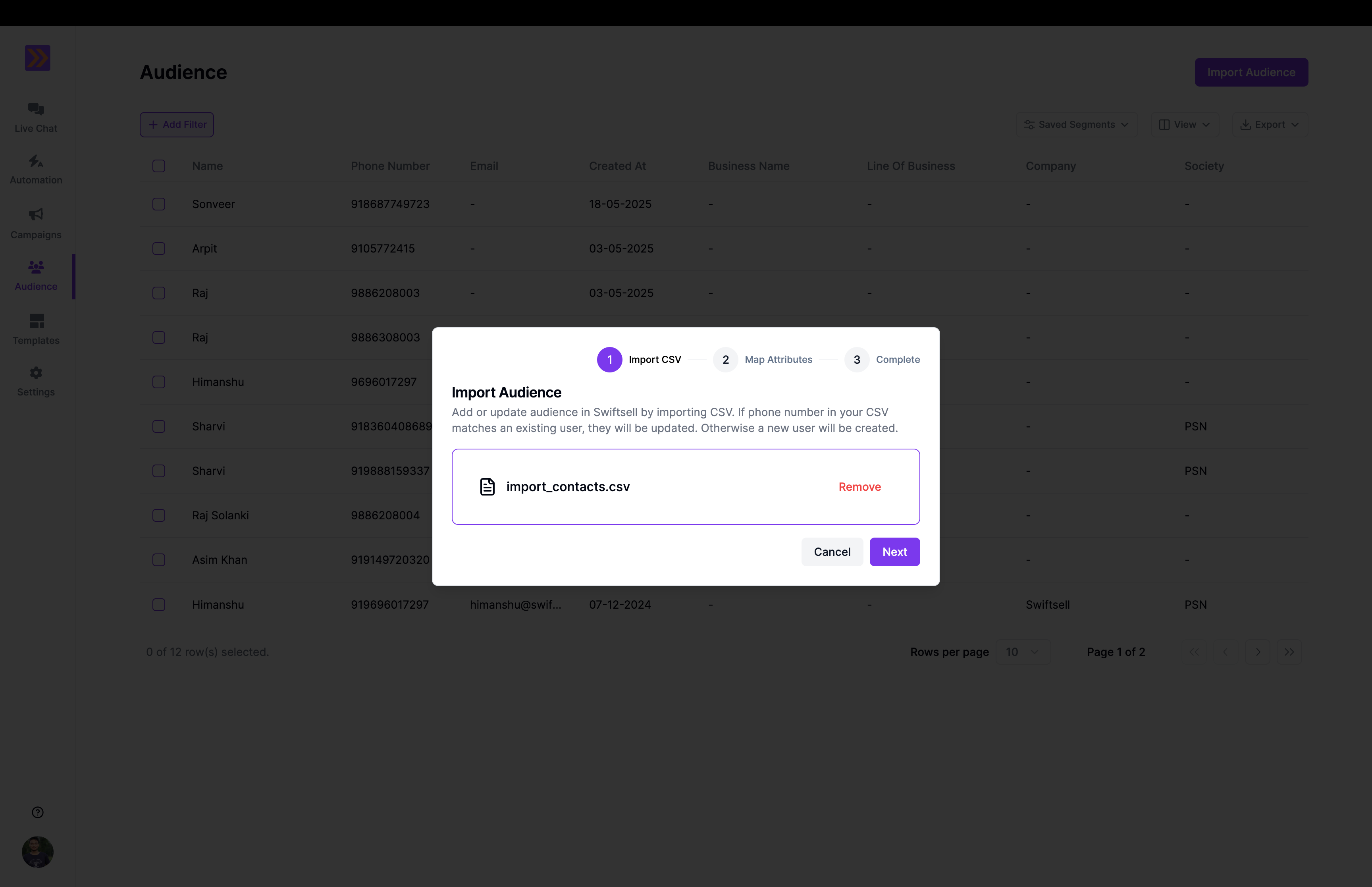
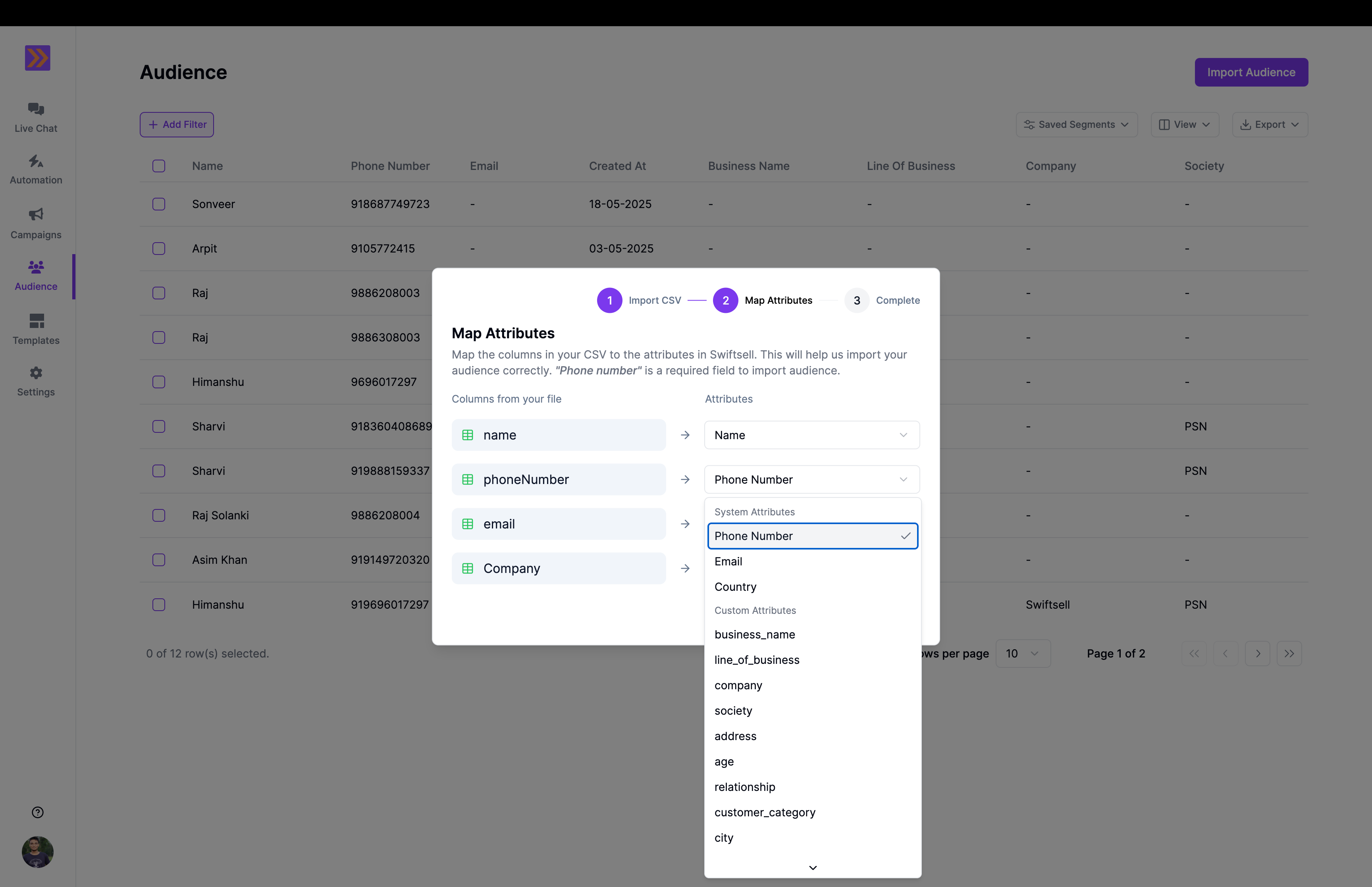
Swiftsell automatically detects and maps your columns to contact attributes:- Manual mapping - Map each column to the appropriate attribute
- System attributes - Pre-built fields like phone, email, name
- Custom attributes - Use existing custom attributes you’ve created
- Skip columns - Exclude unwanted data from import
3. Import Initiated
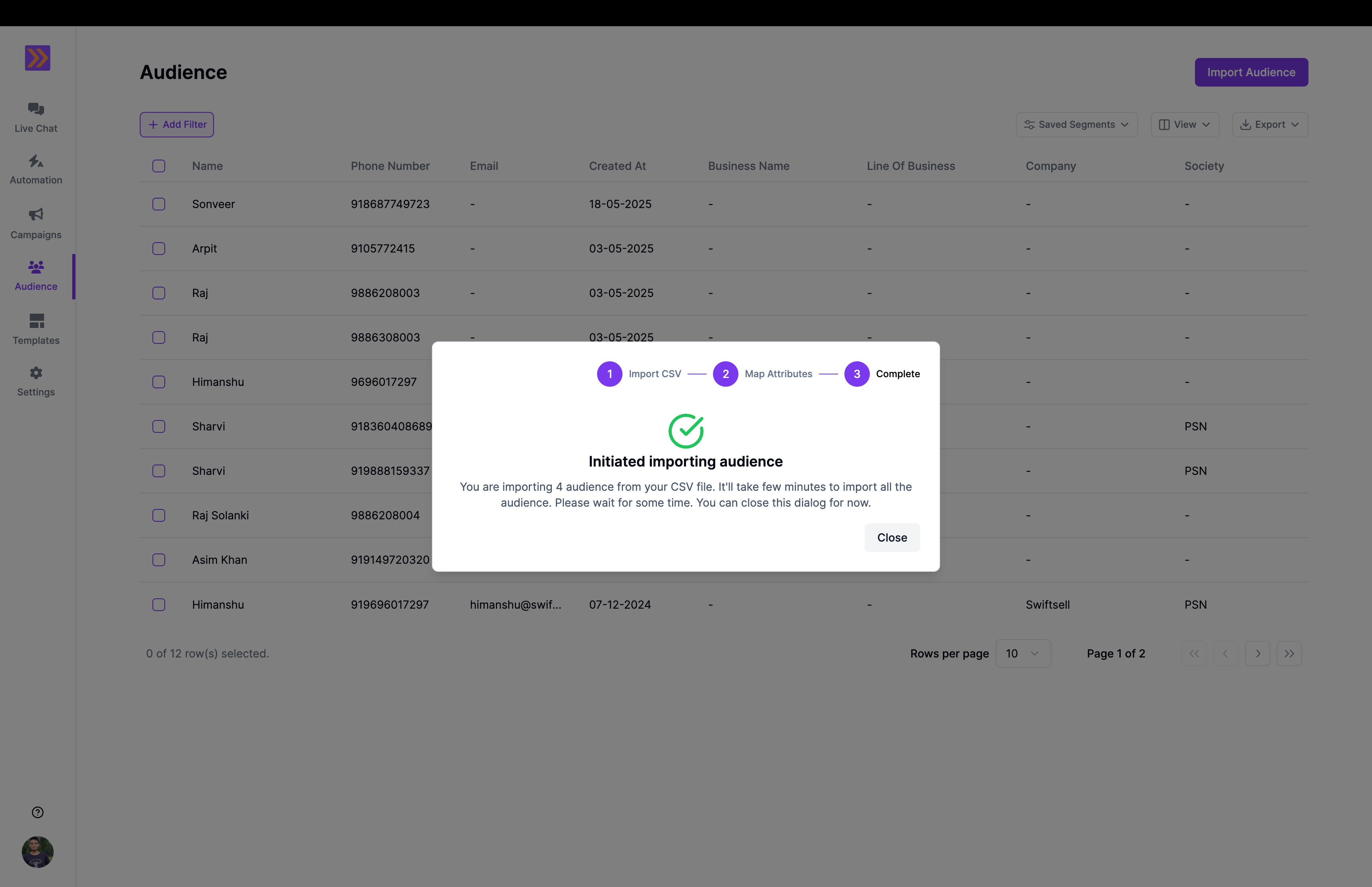
Once you click “Next”, your import will begin processing:- Background processing - Import runs in the background
- Progress tracking - Monitor import status in real-time
- Completion notification - Get notified when import finishes
- Error handling - Failed imports are logged for review
Common Issues & Solutions
Phone Number Errors
Problem: Numbers not recognizedFix: Use international format with country code (+1234567890)
Duplicate Contacts
Problem: Same contact imported multiple timesFix: Contacts with existing phone numbers will have their attributes updated
Mapping Errors
Problem: Data not appearing correctlyFix: Check column mapping, verify attribute types match data
Best Practices
Before Import:- Clean your CSV data and remove duplicates
- Use consistent column naming
- Ensure phone numbers include country codes
- Test with a small sample first
- Review auto-mapping suggestions carefully
- Create meaningful attribute names
- Skip unnecessary columns
- Be aware that existing contacts will be updated
- Check import summary for errors
- Verify contact data in audience view
- Update any failed imports manually