

Message Block
The Send Message block in Swiftsell’s WhatsApp automation builder allows you to send a text message to users at any point in your flow. This block is ideal for welcoming users, providing information, or guiding them before collecting input or presenting options.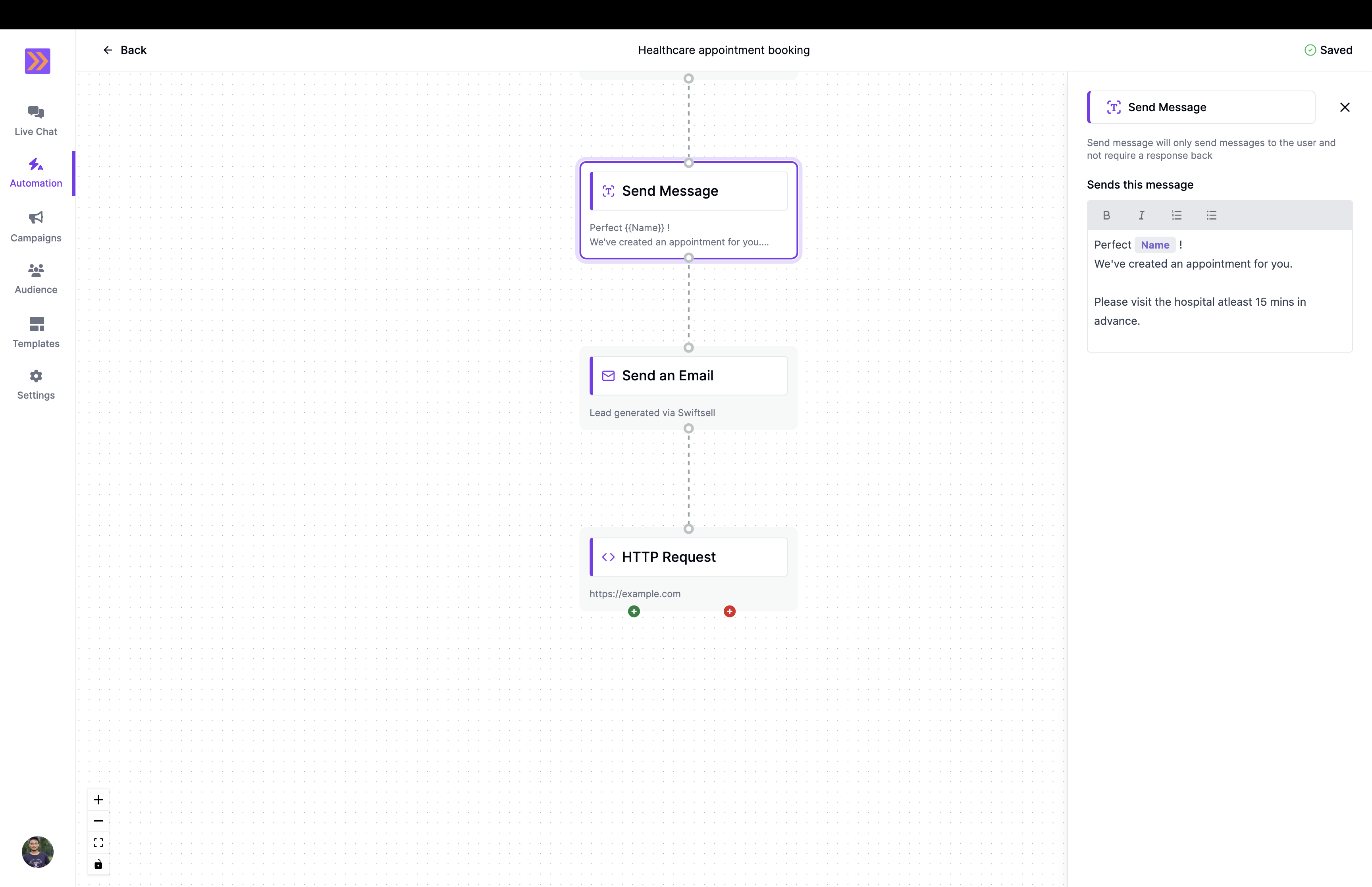
How It Works
- The Send Message block delivers a message to the user without expecting a response.
- Use it to greet users, share instructions, or provide context before moving to the next step in your automation.
- The message can include formatted text, lists, and variables for personalization.
Key Components
-
Message Body
Compose the main message that will be sent to the user.- Supports formatting: Bold, Italics, ordered and bulleted lists.
- Personalize messages using variables collected earlier in the flow.
The Send Message block does not collect input or display buttons. The flow automatically continues to the next step after the message is sent.
Example Use Case
In the screenshot above, the Send Message block is used in a healthcare appointment booking flow. After collecting the user’s name, the block sends a personalized confirmation message:The Message block is perfect for sharing information, instructions, or greetings, ensuring users are informed and engaged as they move through your WhatsApp automation flow.