

You can create three types of templates: AUTHENTICATION, UTILITY, and
MARKETING. Templates are submitted to Meta for review before they can be
used in campaigns or automations.
Prerequisites
- WhatsApp Business Number connected to your workspace
- Permission to Create templates
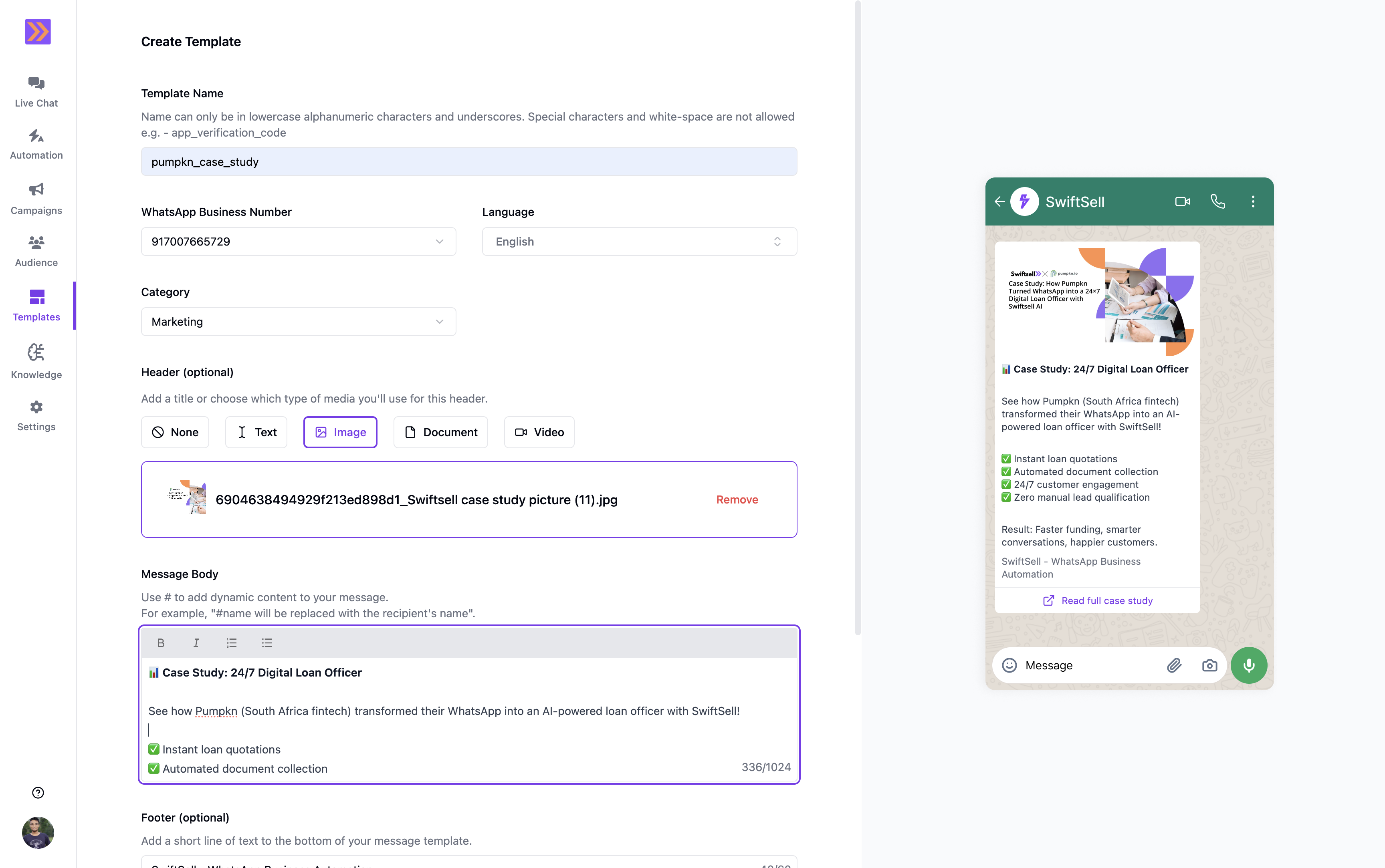
Open the template creator
- Go to
Templatesin the left sidebar and select Create Template.
Name, number, language, and category
Template name
The name must be lowercase, alphanumeric, and use underscores only. Max 50 characters.Examples:
order_update_v2, big_billion_day_saleLanguage
Pick the language from the searchable list. Languages include variants like
English (US), Portuguese (BR), Chinese (CHN/HKG/TAI) and more.
Header (optional)
Choose one of the following header types. Each type enforces file and size limits when you upload.- None: No header.
- Text: Up to 60 characters.
- Image:
.jpgor.png, max 5 MB. - Document:
.pdf,.doc/.docx,.xls/.xlsx,.ppt/.pptx, max 100 MB. - Video:
.mp4or.3gp, max 16 MB.
Message body
- Rich text editor with a live character counter (max 1024).
- Use
#to insert dynamic variables (for example:#name). - When you add variables, an Example Values panel appears. Provide a sample for each variable; these samples are sent to Meta during review.
Footer (optional)
- Single line of text, up to 60 characters.
Buttons (optional)
Select one mode: No buttons, Call to action, or Quick reply.Call to action
- Add at most one of each:
- URL button: label 1–20 chars, URL validated (up to 512 chars).
- Phone button: label 1–20 chars, phone validated as a mobile number.
- Button texts must be unique across all buttons.
Quick reply
- Up to 3 quick replies.
- Each quick reply label is 1–25 characters.
- Button texts must be unique across all buttons.
Preview
A live WhatsApp preview is shown on the right as you edit. It updates with your header, body, footer, and buttons, including media thumbnails.Submit for review
Click Submit to send the template to Meta for approval.On success, the template appears in your templates list with a status like
In review. You can use approved templates in Campaigns and Automations.
Tips and best practices
- Keep headers concise and use images when they add real context.
- Write scannable bodies: short paragraphs or bullet points work well on mobile.
- Personalize responsibly: only include variables you can reliably provide.
- Use unique button labels to pass validation and help users decide quickly.
- Test the link/number you place in CTA buttons.
Validation limits (reference)
- Name: lowercase a–z, 0–9, underscore
_; max 50 chars - Header text: max 60 chars
- Footer text: max 60 chars
- Body: max 1024 chars (plain-text count)
- URL button: label 1–20, URL ≤ 512 chars
- Phone button: label 1–20, valid mobile number
- Quick reply: label 1–25, up to 3 quick replies
These limits come from the SwiftSell template form validation and WhatsApp
requirements.