

Media Block
The Media block in Swiftsell’s WhatsApp automation builder allows you to send rich media messages—such as images, documents, or videos—to your users. This block is perfect for sharing files, reports, promotional materials, or any visual content as part of your automated flows.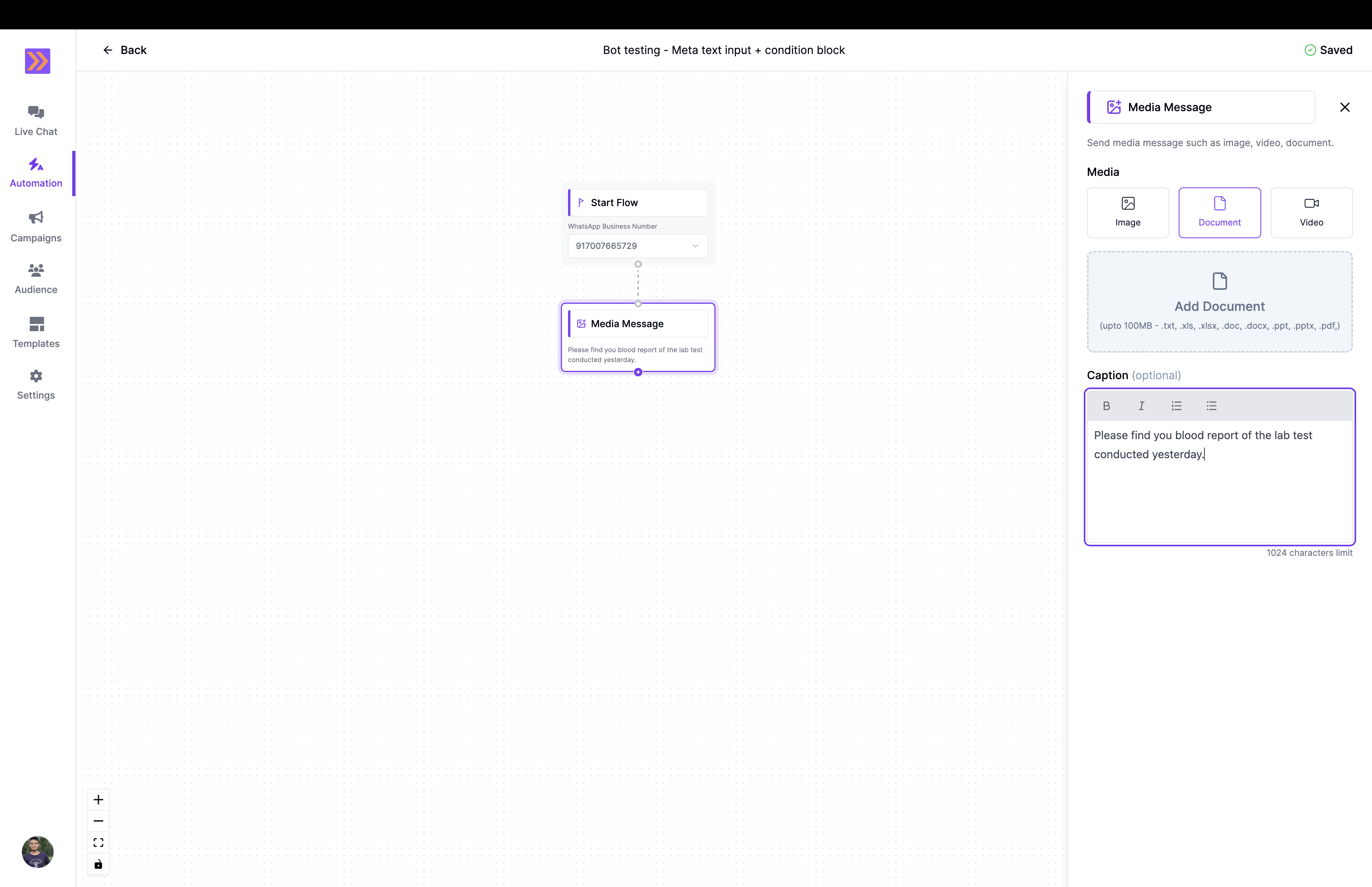
How It Works
- The Media block lets you choose the type of media (Image, Document, or Video) to send to the user.
- You can upload a file directly within the block, with file type and size limits based on the selected media type.
- Optionally, add a caption to provide context or instructions along with the media.
- The media message is sent to the user as part of the automation flow, supporting seamless sharing of important content.
Key Components
-
Media Type Selection
Choose between Image, Document, or Video. The accepted file formats and size limits are shown for each type:- Image: PNG, JPG, JPEG (up to 5MB)
- Document: PDF, DOC, DOCX, XLS, XLSX, PPT, PPTX, TXT (up to 100MB)
- Video: MP4, 3GP (up to 16MB)
-
File Upload
Upload the media file you want to send. The interface guides you with drag-and-drop or file picker options, and displays upload progress. -
Caption (optional)
Add a caption to accompany your media message. Captions support basic formatting and can be used to explain the content or provide instructions (up to 1024 characters).You can insert variables using#inside the editor to personalize captions. -
Preview & Remove
After uploading, preview the media or remove it to upload a different file.
Example Use Case
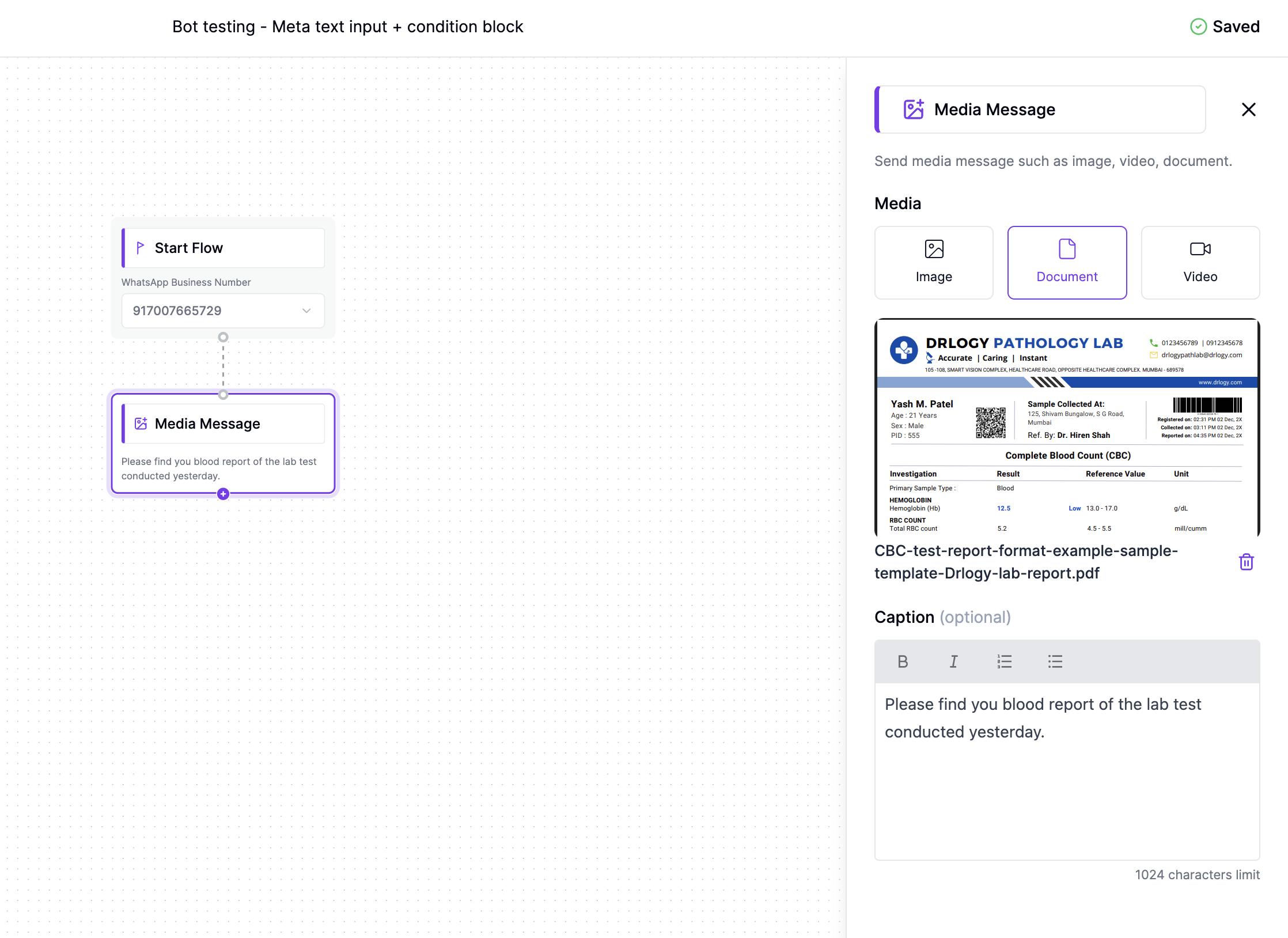
In the screenshot above, the Media block is used to send a lab test report as a document to the user, with a caption: “Please find your blood report of the lab test conducted yesterday.” This enables automated, secure, and contextual sharing of important files directly via WhatsApp.The Media block enhances your automation flows by enabling the delivery of rich content, making your conversations more engaging and informative.